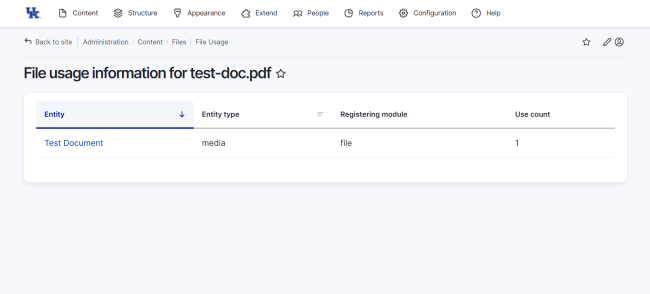
Managing documents on your UK Web Platform site is a straightforward process handled through the central file administration area. Follow these steps to replace or delete PDF files.
1. Log In to Your Site
To access the administrative dashboard, navigate to your site's login URL:
- URL Format: https://yourdomain.uky.edu/user/login
- Enter your linkblue ID and password to proceed.

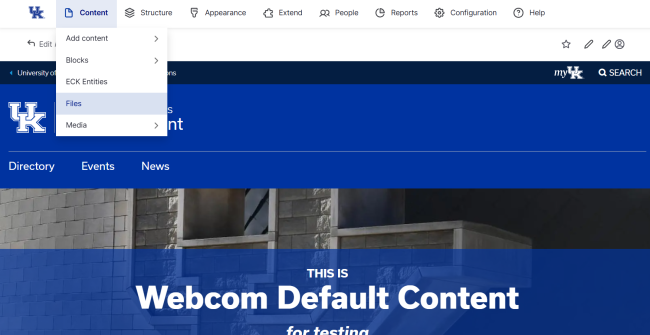
2. Navigate to the Files Menu
Once logged in, use the administrative toolbar at the top of the page:
- Click on Content.
- Select Files from the dropdown menu to open the file administration page.
3. Locate Your PDF
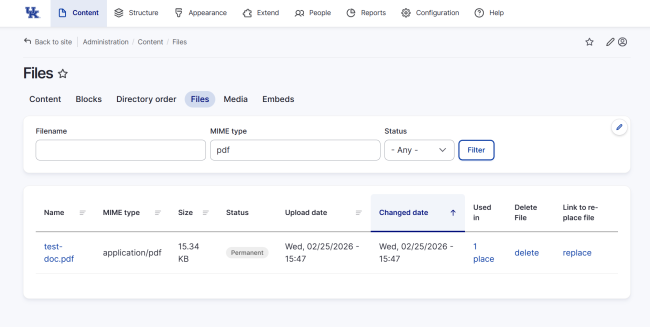
On the Files page, you can quickly find your document using the filters:
- Filename: Type the name of the file.
- MIME type: To see only PDFs, type application/pdf (or simply pdf) in this field.
- Click Filter to update the list.
4. Replacing a File
If you have an updated version of a document and want to keep the same file association:
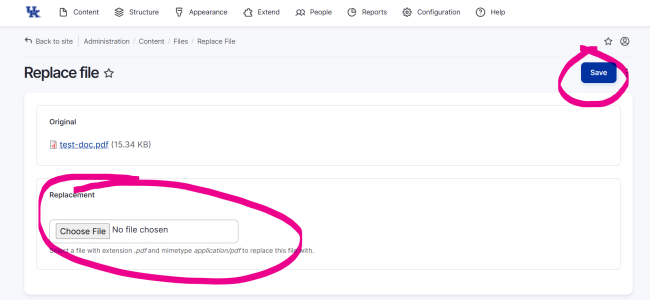
- Find your file in the list and click replace in the far right column.
- In the Replacement section, click Choose File and select your new PDF from your computer.
- Click Save. The old file is now replaced by the new version across your site.
5. Deleting a File
To permanently remove a file from your site:
- Locate the file and click delete.
- On the confirmation page, click Delete File.
Note: This action cannot be undone.
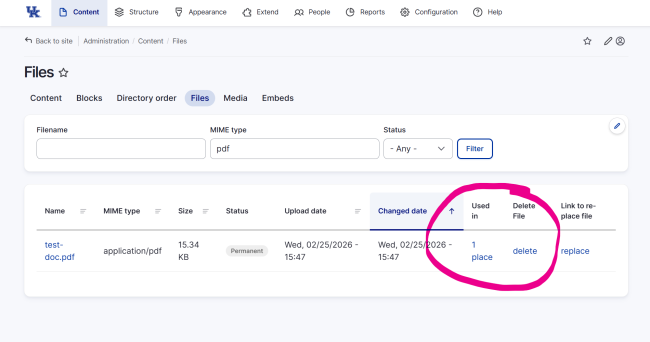
Handling "In Use" Errors
If you try to delete a file that is currently linked to a page or a media item, you will see a red Error message stating the file cannot be deleted because it is in use.
- Click the here link within the error message to see exactly where the file is being used.
- Navigate to those specific pages or media entities to remove the file link or delete the media item first. Once the "Use count" is zero, you can return to the Files menu to delete the file successfully.
- There may be files that show "In Use" but nothing is displaying in the File usage information screen. If this happens contact Web Communications through our General Support Form.